
Add a site
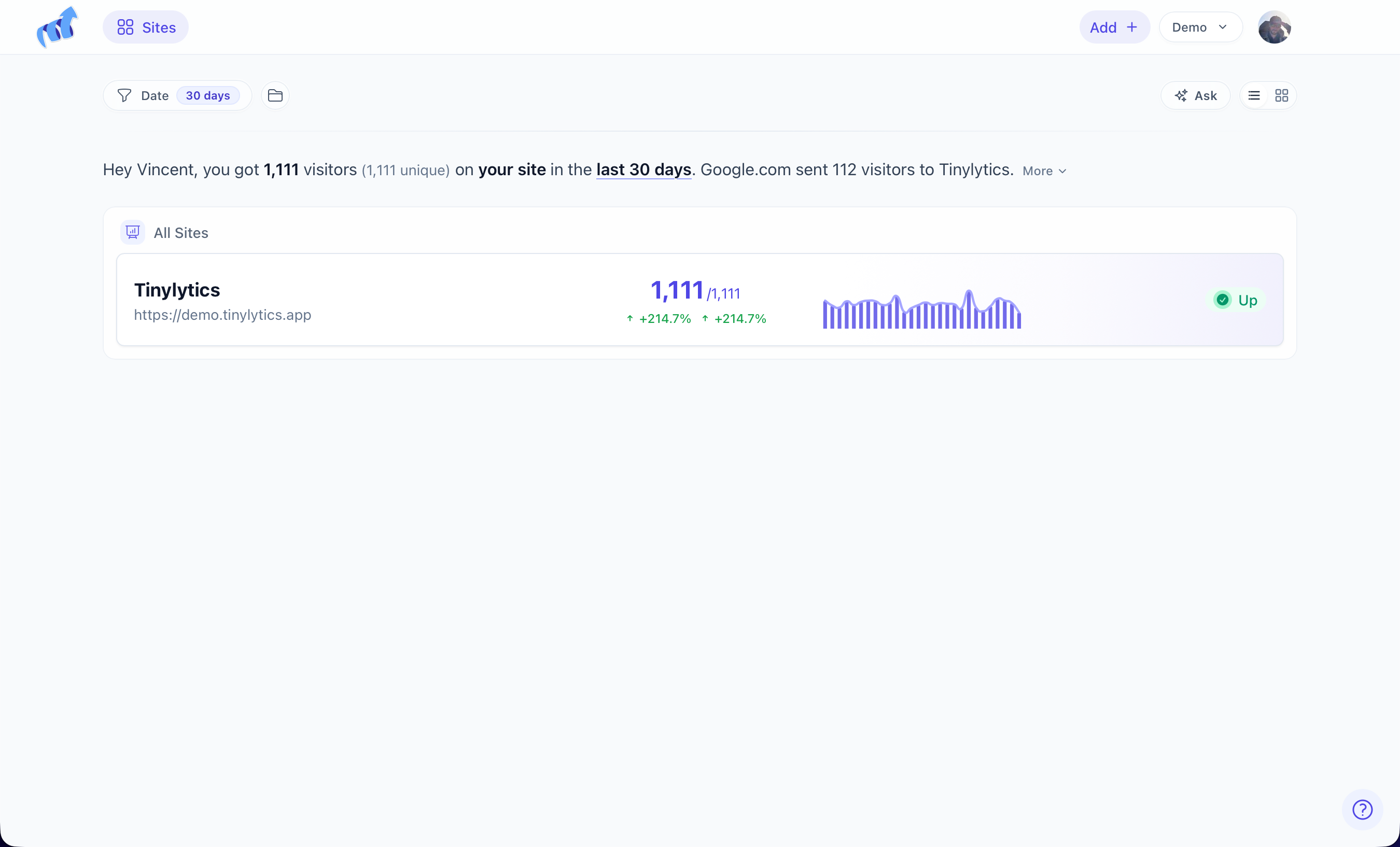
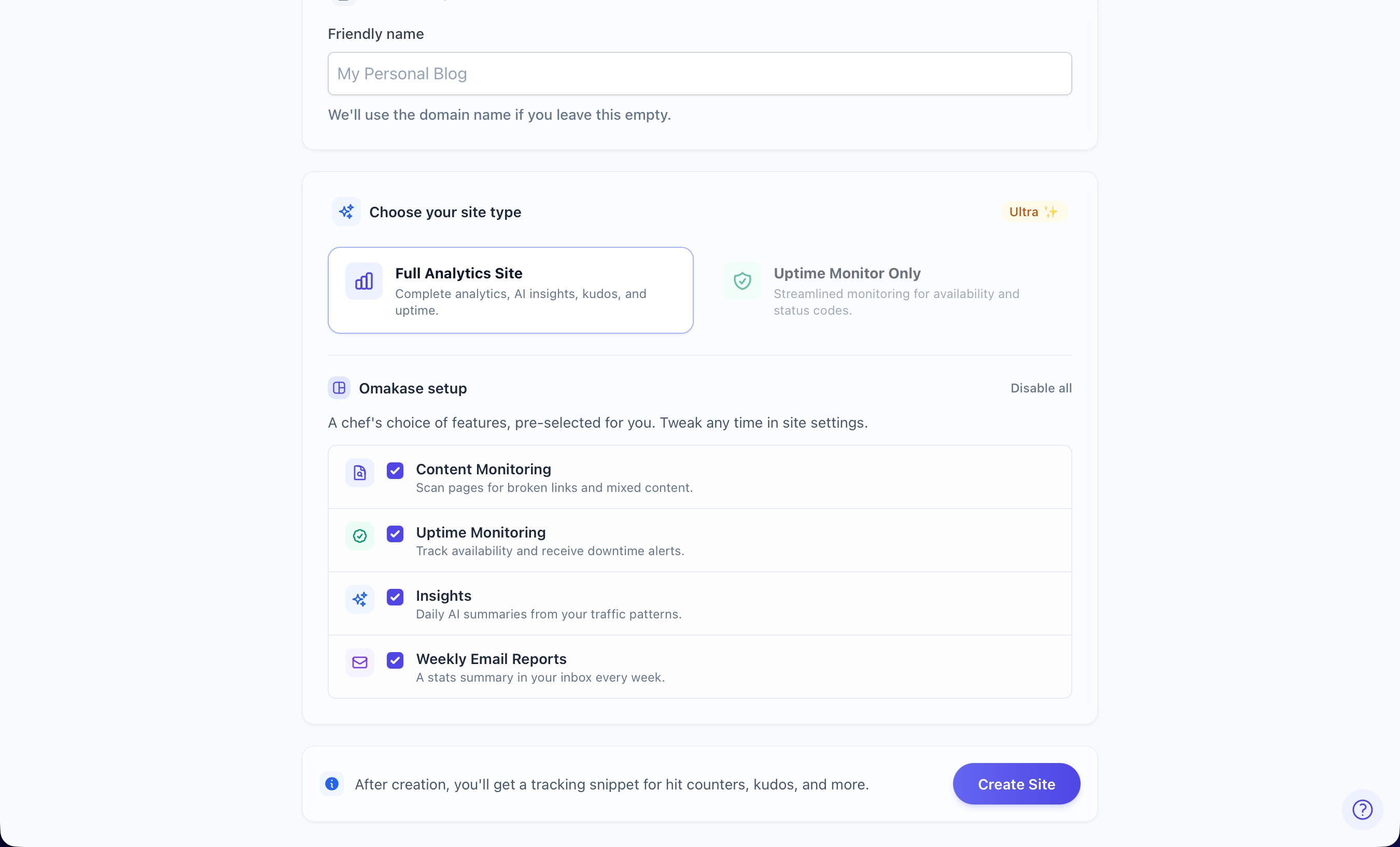
From the sites list, Add +. It asks for the URL. A friendly name is optional. Ultra can pick Full Analytics Site or Uptime Monitor Only.
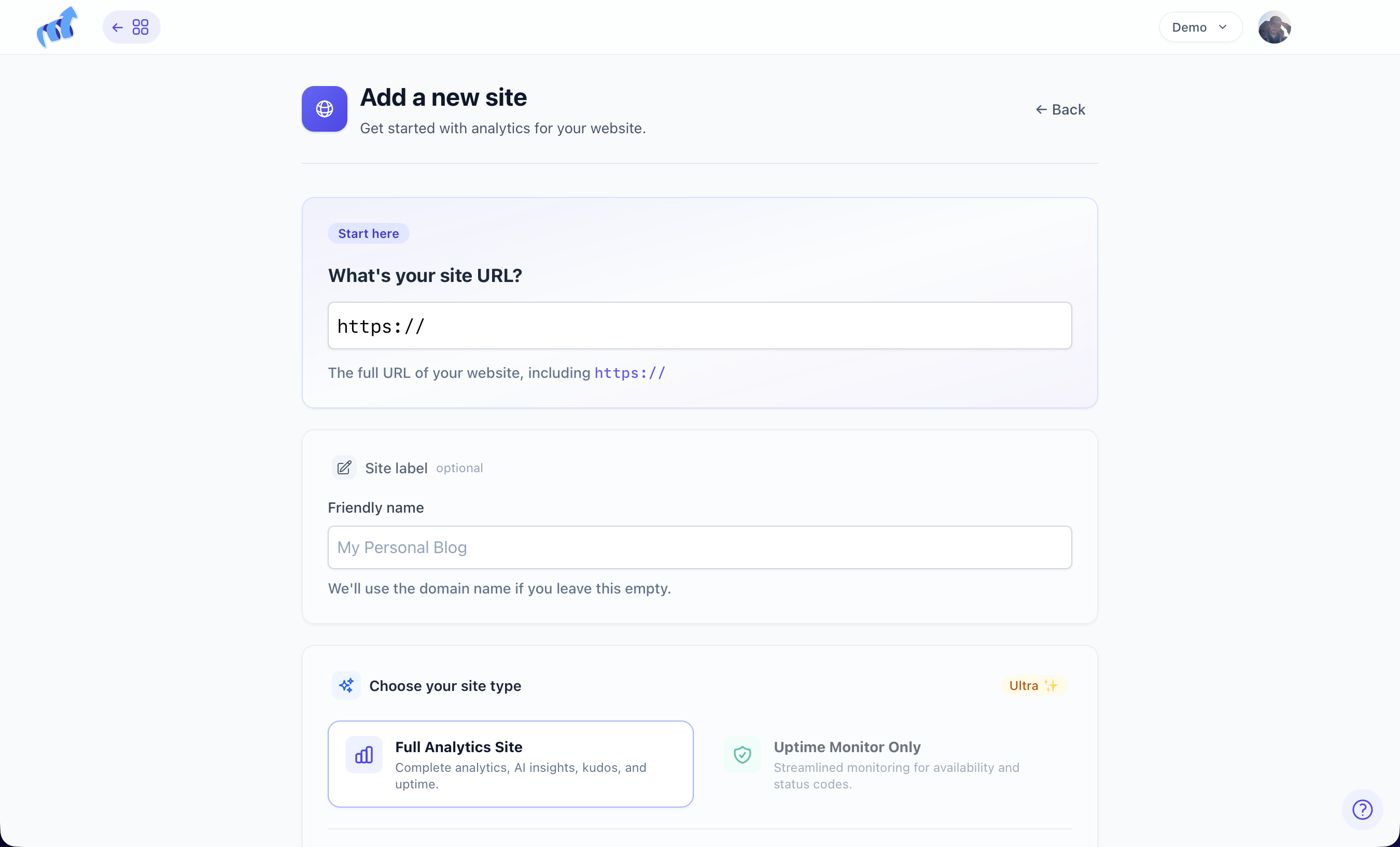
Use the hostname people actually load. If the site lives at www.example.com and that is what you type, example.com without www will not count unless you turn on Allow on any domain in Settings → General.
www and the apex are an exception. If you configured example.com and the browser loads www.example.com without a redirect, we still count those hits.
Timezone is on the account. It drives the chart, “this week”, and when weekly email goes out.
After you save
You land on the site. Settings is where the embed snippet lives, along with General, Appearance, Public & Webring, Data Hub, and Ignore Rules.
A development hostname that does not match the configured domain records nothing. Make a second site for staging if you need one.