Guide to Uptime Monitoring

What is Uptime Monitoring?

Uptime monitoring is a service that regularly checks if your website is online and functioning properly. Tinylytics uptime monitoring provides:

  • Regular health checks of your website
  • Immediate notifications when your site goes down or comes back up
  • SSL certificate monitoring and expiration alerts
  • Historical uptime statistics and event tracking
  • Easy display of uptime stats on your website

Uptime monitoring runs on Thunder Clap, our in-house monitoring platform.

How It Works

Monitoring Process

  1. Regular Checks: Tinylytics checks your website every 5-10 minutes when it’s functioning normally.
  2. Multiple Verification: When a potential downtime is detected, the system:
    • Marks it as potential downtime behind the scenes
    • Performs multiple verification checks across different regions
    • Only sends notifications once downtime is confirmed
  3. Adaptive Monitoring: Check frequency automatically adjusts based on site status:
    • When your site is up: Checks every 5-10 minutes
    • When your site just went down: Checks every 5 minutes
    • After 24 hours of downtime: Reduces to every 10 minutes
    • After 48 hours of downtime: Reduces to every 30 minutes
    • After 3 days of downtime: Reduces to every 1 hour
    • After 7 days of downtime: Auto-pauses monitoring (can be resumed anytime)

SSL Certificate Monitoring

For HTTPS sites, Tinylytics also monitors your SSL certificate:

  • Validates certificate authenticity
  • Tracks expiration dates
  • Sends notifications 30, 14, 7 & 1 day before expiration
  • Provides detailed SSL status in your dashboard
  • Detects and reports specific SSL issues:
    • SNI (Server Name Indication) problems
    • Certificate chain issues
    • Protocol compatibility problems
    • Configuration errors

Notifications

Tinylytics sends email notifications for important events:

  • Downtime Alerts:
    • Initial detection with verification status
    • Confirmed downtime with detailed error information
    • Accurate timing of when the issue started
  • Recovery Notices:
    • Precise downtime duration
    • Time of recovery
    • Previous error state for context
  • SSL Warnings:
    • Certificate expiration warnings (30 days notice)
    • Configuration issues with specific details
    • Renewal confirmations
  • Auto-Pause Notifications: When monitoring is paused after extended downtime of more than 7 days

The system includes detailed error information to help diagnose problems:

  • HTTP error codes with user-friendly explanations:
    • Authentication issues (401, 403)
    • Missing content (404)
    • Server errors (500, 502, 503, 504)
    • Rate limiting (429)
  • Connection issues:
    • Timeout/expired connections
    • Connection refused errors
    • DNS resolution problems
    • Network routing issues
    • SSL/TLS errors

Dashboard Features

Monitor your website’s status through the Tinylytics dashboard:

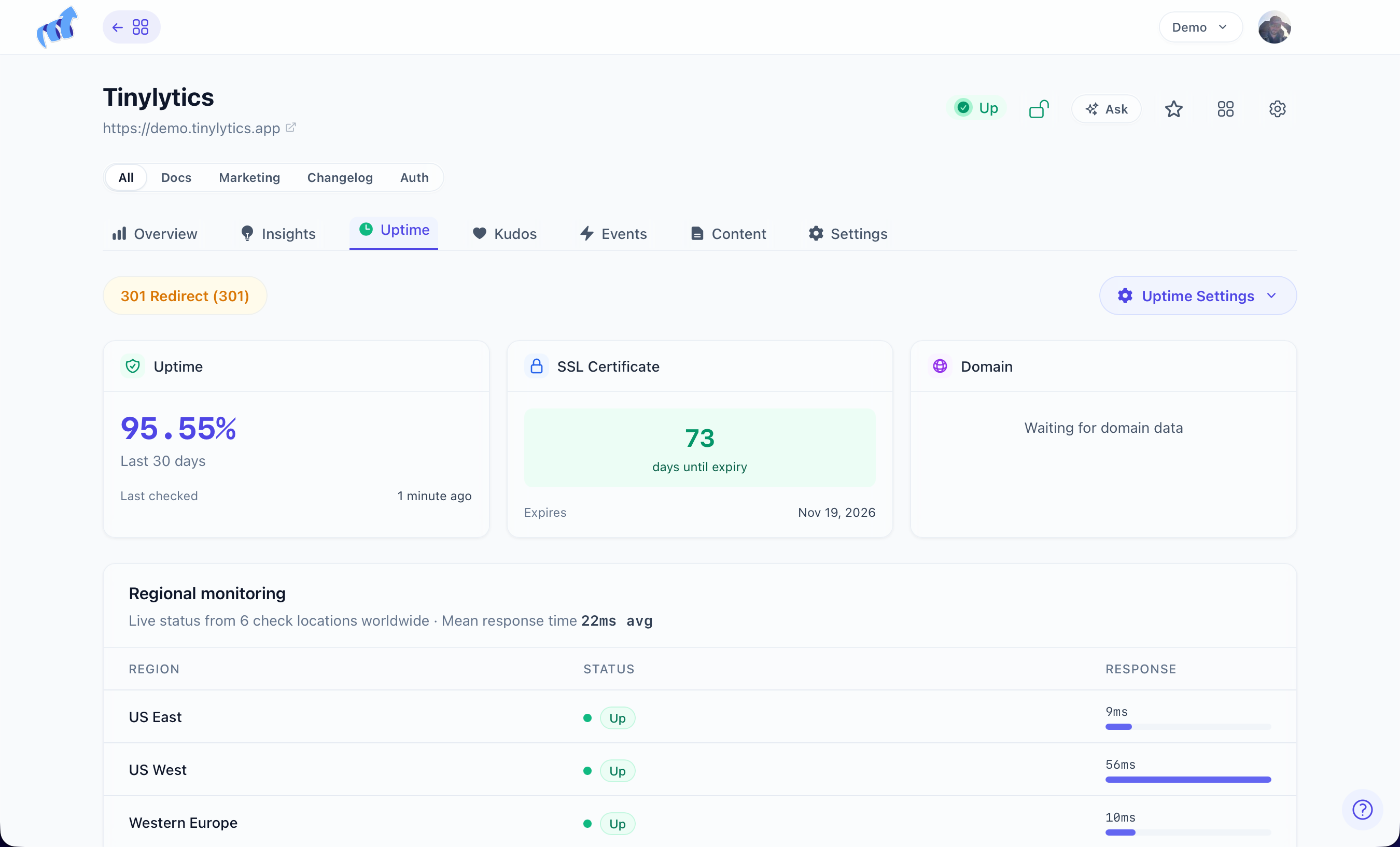
  • Uptime Percentage: View your site’s reliability over time
  • Current Status: See if your site is currently up or down
  • Event History: Track all downtime events
  • SSL Certificate Status: Monitor certificate validity and expiration
  • Manual Controls: Pause and resume monitoring, great for when you’re working on a site during maintenance

Displaying Uptime on Your Site

Once you’ve set up uptime monitoring, you can display your uptime stats on your website:

1. Modify Your Embed Script

Add the uptime parameter to your embed script:

https://tinylytics.app/embed/YOUR_EMBED_CODE.js?uptime

2. Add the Uptime Element

Add this HTML element where you want to show your uptime:

<span class="tinylytics_uptime"></span>

Combining with Other Features

You can combine uptime with other Tinylytics features:

With hit counter:
https://tinylytics.app/embed/YOUR_EMBED_CODE.js?hits&uptime

With hits and kudos:
https://tinylytics.app/embed/YOUR_EMBED_CODE.js?hits&kudos&uptime

Troubleshooting Common Issues

Site Shows as Down But It’s Working

Possible causes:

  • Bot protection or firewall blocking monitoring requests
  • Rate limiting from security tools
  • Regional networking issues

Solutions:

  • Whitelist the Tinylytics User Agent in your firewall settings
  • Configure Cloudflare to allow Tinylytics monitoring requests
  • Verify bot protection settings
  • Contact support if issues persist

Firewall and CDN Configuration

Thunder Clap uses a specific User Agent for Tinylytics uptime checks: text Tinylytics Uptime Monitor/1.0

If you’re using Cloudflare or similar services, you should create a rule to allow requests with this User Agent. Otherwise, your firewall might block our health checks, resulting in false downtime alerts.

For Cloudflare users:

  1. Go to your Cloudflare dashboard
  2. Navigate to Security → WAF → Create Rule
  3. Create a rule that allows traffic when the User Agent contains “Tinylytics Uptime Monitor”
  4. Set the rule to “Skip” security features for matching requests

SSL Certificate Warnings

Common issues:

  • Certificate approaching expiration
  • Self-signed certificates
  • Incomplete certificate chains
  • SNI (Server Name Indication) configuration problems

Solutions:

  • Renew certificates before they expire
  • Use trusted certificate authorities
  • Configure proper certificate chains
  • Set up SNI correctly for shared hosting

Plan Features and Limitations

  • Legacy free accounts: Uptime monitoring is not available.
  • Paid plans: Full uptime monitoring and SSL certificate monitoring.

Best Practices

  • Place the uptime display in your footer or status page
  • Combine with hit counters for more comprehensive stats
  • Resume monitoring promptly after auto-pause
  • Keep your SSL certificates up to date
  • Use the monitoring data to improve your hosting setup

By following this guide, you’ll be able to fully utilize Tinylytics’ uptime monitoring to ensure your website stays reliable and secure.

Tinylytics — privacy-first analytics & monitoring for small sites and indie projects.
Incredibly OK™ software by Vincent Ritter.
Terms Privacy Contact
© 2026 Tinylytics