
Keep related sites in one clean view.
Groups let you scan a family of sites in one place. Pin important collections, see combined totals and widgets for everything that belongs together, and set the chart to add the sites up or show each one on its own.
Building a group
Give a group a name and pick the sites that belong in it. A site can sit in as many groups as you like, so one blog can live in both "Personal" and "Writing". Add a short description, an emoji or your own image as the icon, and an accent color so each group is easy to tell apart.
The group page
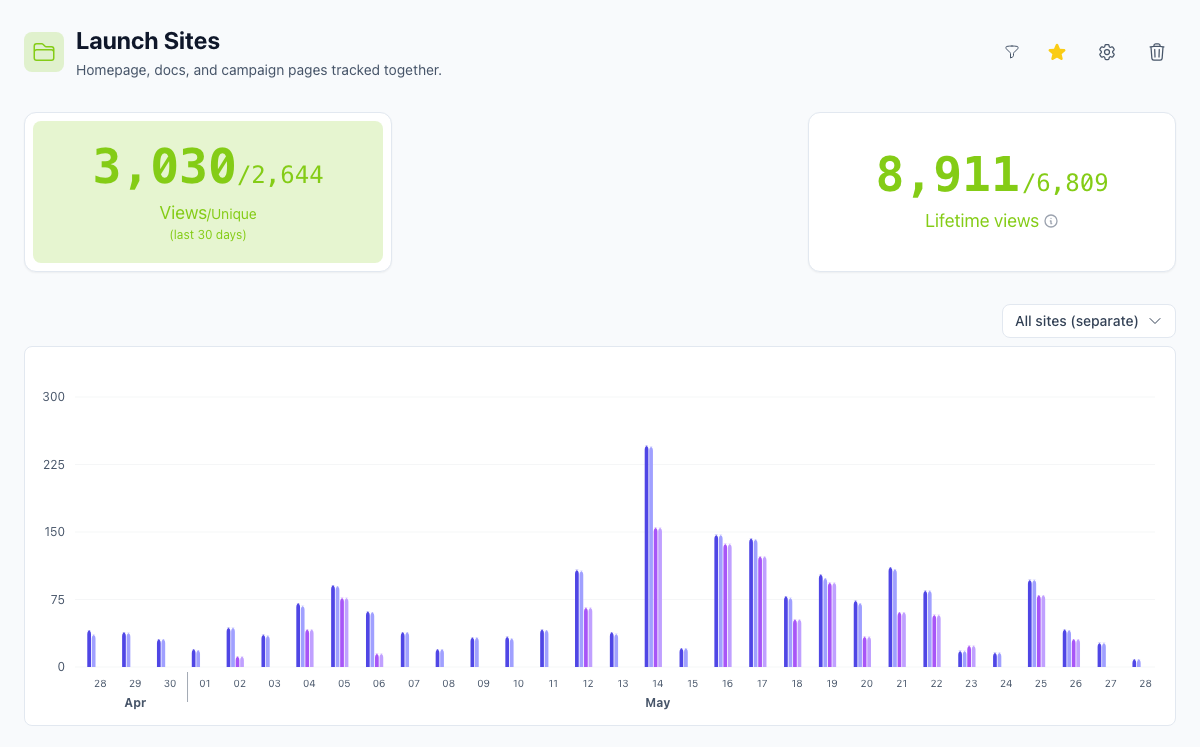
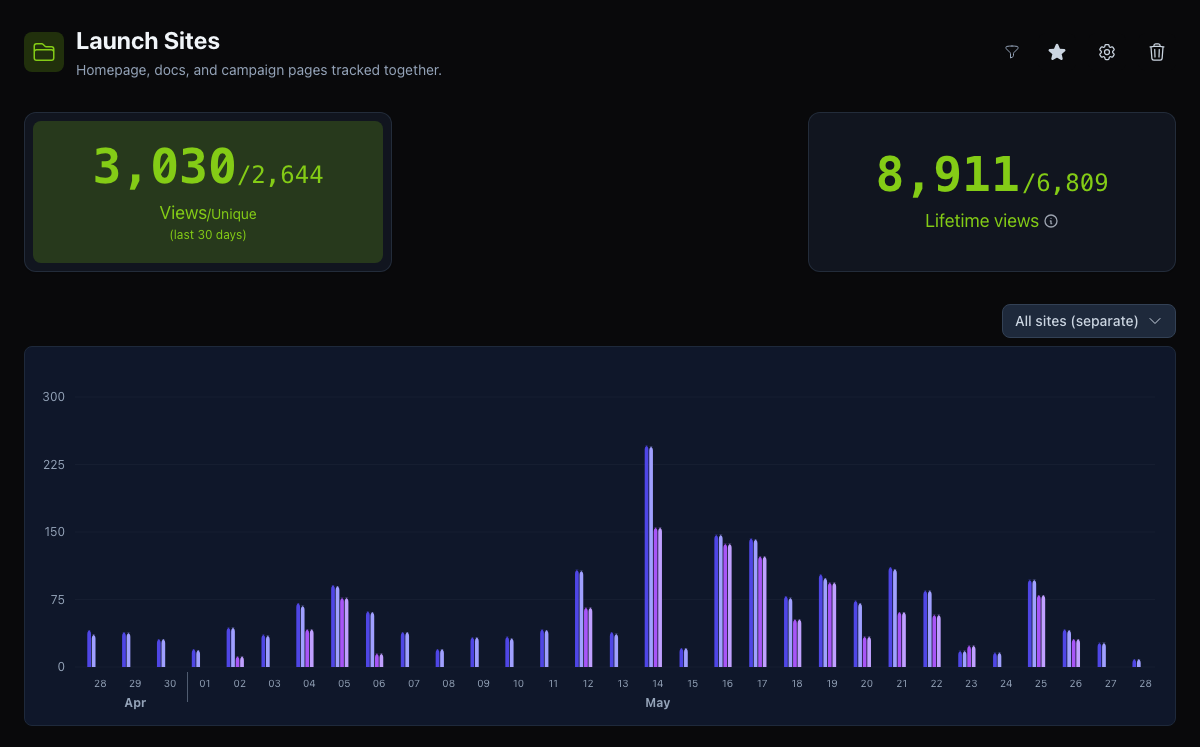
A group page opens with one line: how many views, and unique visitors where you count them, all its sites had in the date range you chose. Widgets come next, up to six per group, picked from current and lifetime views, sessions, average uptime, kudos, open content issues, and the busiest time of day. Add, remove, and reorder them to suit the group.
Then the chart. It starts on the view you set for the group, every site as its own column or all of them added together, and a menu on the chart switches between the two or narrows it to a single site. The list of sites in the group sits underneath. Pick a range from today back to this year, or set your own dates.
Pinning
Pin a group and it appears as a shortcut at the top of your sites list, with its current view count. Drag the pinned groups into the order you want. Pinned groups also come first in the groups menu.
Plans and teams
Site groups are part of Ultra. If you share your account, everyone on the team sees your groups, and team members with the Owner role can create and change them too. Groups can also be managed through the API.